



Your Apple Watch is a handy device with several health and fitness features that allow you to monitor your daily activities and track vital signs. In addition, your Apple Watch also acts as an extension of your iPhone by allowing you to receive calls, send messages, and stay on top of your notifications, among others.
While receiving and glancing at your notifications on your wrist is more convenient, it can sometimes become intrusive and distracting. Below, we’ll cover tips to help you minimize your Apple Watch notifications for a peaceful day.
1. Take Advantage of the Focus Feature
Focus is a handy feature on Apple devices that lets you temporarily silence specific notifications for a defined period, enabling you to stay focused and enjoy a mindful and peaceful day. You can customize Focus to allow notifications from selected apps and contacts.
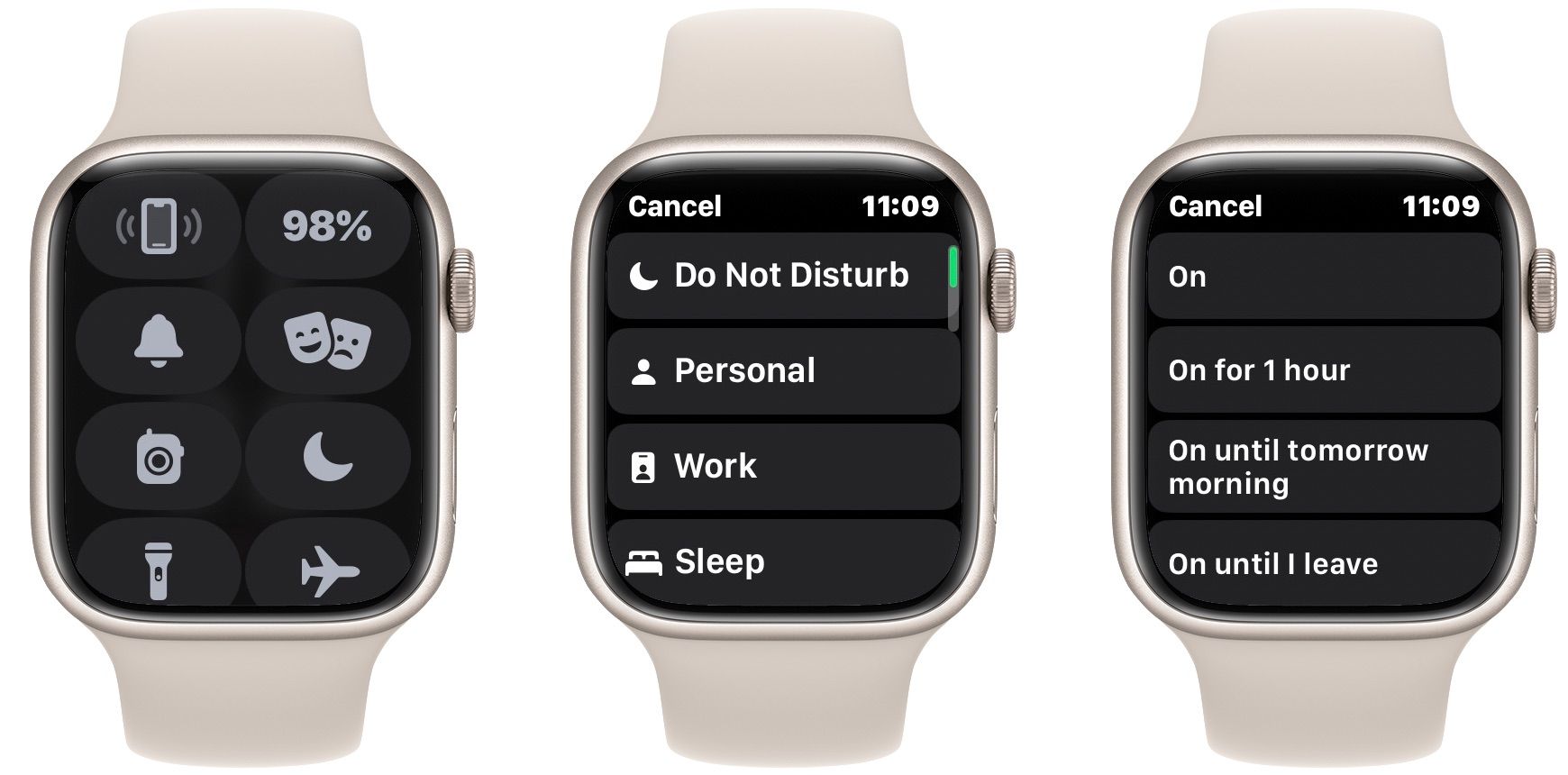
Your Apple Watch has several pre-set Focus modes you can select depending on your needs. Here’s how to enable Focus on your Apple Watch:
- Swipe up from the bottom of the screen to access the Control Center.
- Touch and hold the Focus toggle (indicated by a crescent icon) and select the mode you want to use.
- Choose the duration—On (till you manually change it), On for 1 hour, On until this evening, or On until I leave.
Remember that Focus syncs across all your Apple devices, so the same settings will apply to all your devices.
2. Turn Off Stand Reminders
Staying seated or inactive for an extended period can be bad for your health, and as we hinted above, your Apple Watch has some handy features that can help you improve your health and overall well-being. One of these features is Activity rings that monitor specific activities. This includes the Stand ring (the blue ring) that tracks how often you stand and move throughout the day.
You need to stand for at least a minute during 12 out of 24 hours to close your Stand ring for that day. Your Apple Watch will remind you to move around if you have been sitting for the first 50 minutes of an hour. However, this can quickly become annoying and distracting when focusing on work or something else.
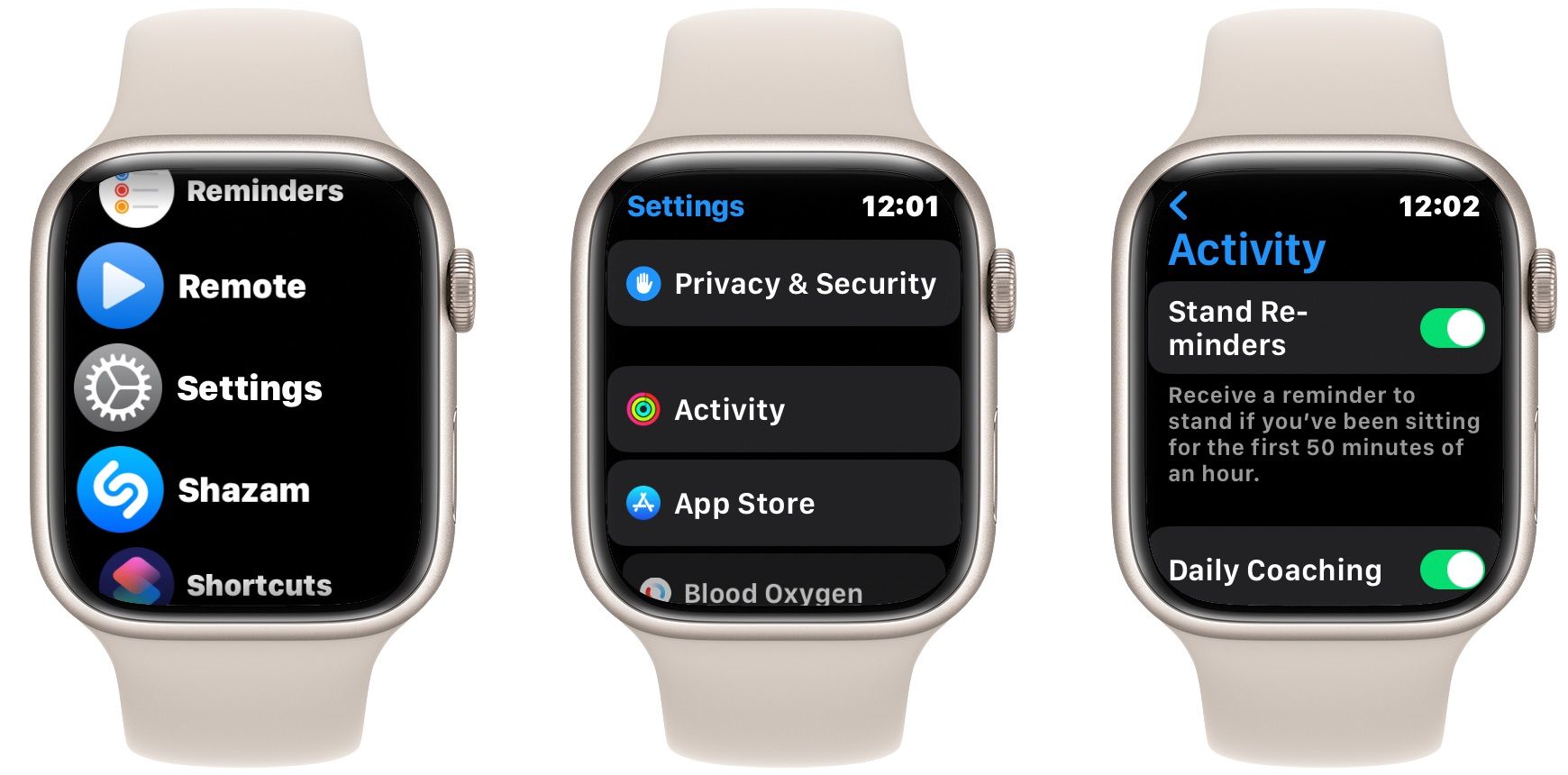
To turn off Time to Stand notifications on your Apple Watch, press the Digital Crown and launch the Settings app. Then, scroll down to Activity and toggle Stand Reminders off. While on this menu, you may also disable other Activity notifications, like Daily Coaching, Goal Completions, Special Challenges, and Activity Sharing Notifications.
3. Disable Mindfulness Reminders
Like the Stand reminder, your Apple Watch also encourages you to take a few minutes daily to focus on your breathing. This simple exercise can help reduce stress and promote mindfulness. While it may seem counter-intuitive to disable a reminder that encourages you to be mindful, there are times when the notifications can interrupt your flow.
To turn off the Mindfulness reminders on your Apple Watch, here’s what you need to do:
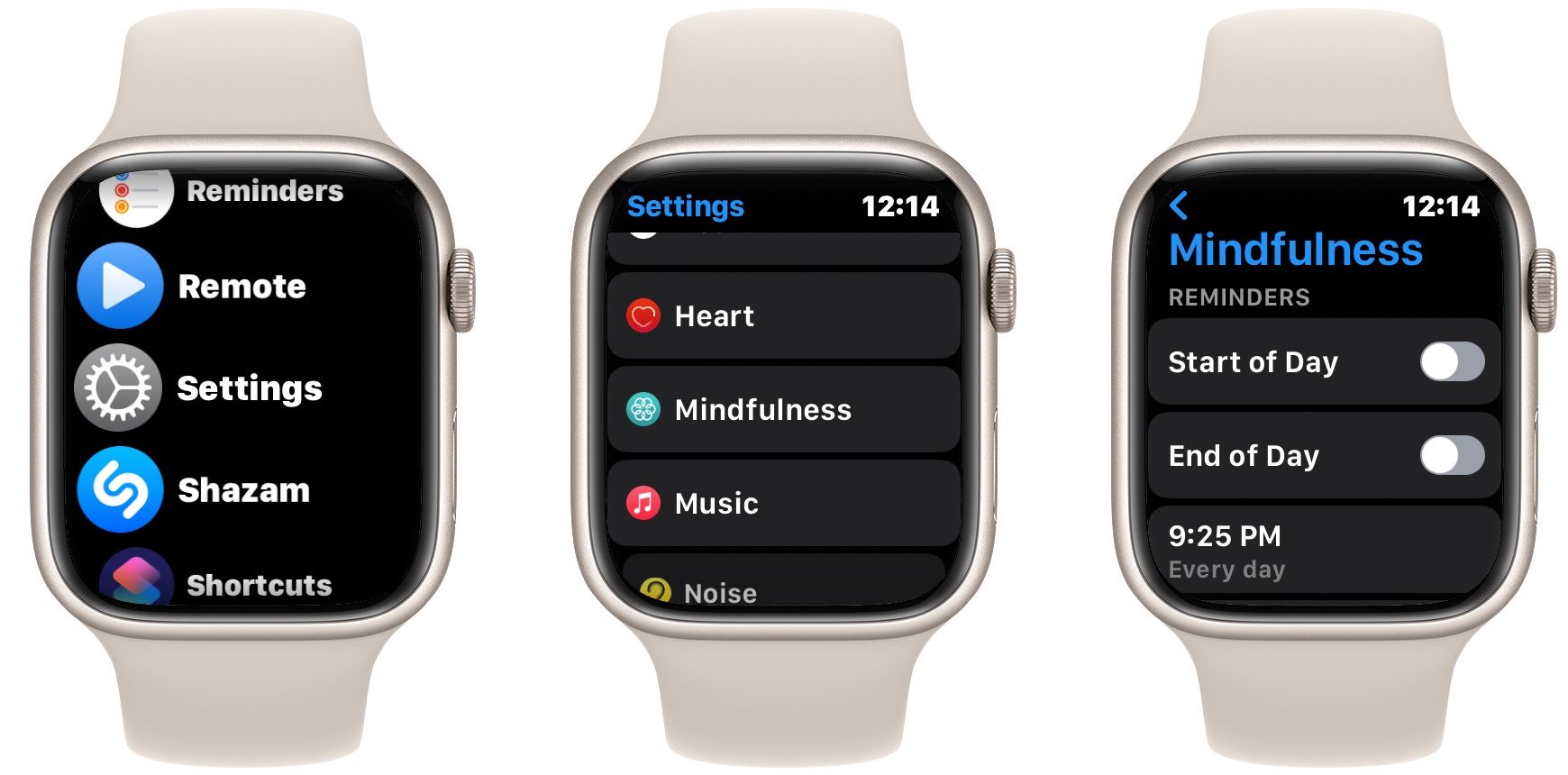
- Press the Digital Crown and select the Settings app.
- Scroll down to Mindfulness and toggle off Start of Day and End of Day under REMINDERS.
- You can gain more control over the Mindfulness reminders by setting your own schedule. Tap Add Reminder and select a more appropriate time to receive the notification.
4. Enable Silent or Theater Mode
For the most part, receiving notifications on your Apple Watch is still less distracting than receiving them on your iPhone, as you can glance at your wrist to see if you have any alerts and can’t indulge in a mindless Twitter or TikTok scrolling session. However, the sound your Apple Watch makes each time you receive a notification can be overwhelming and annoying.
Moreover, considering that your Apple Watch sits on your wrist and is always on you, it’s more convenient to silence the sound and rely on vibrations to alert you of a notification. To silence your Apple Watch, swipe up from the watch face to reveal the Control Center. Then, tap the bell icon to enable Silent Mode.
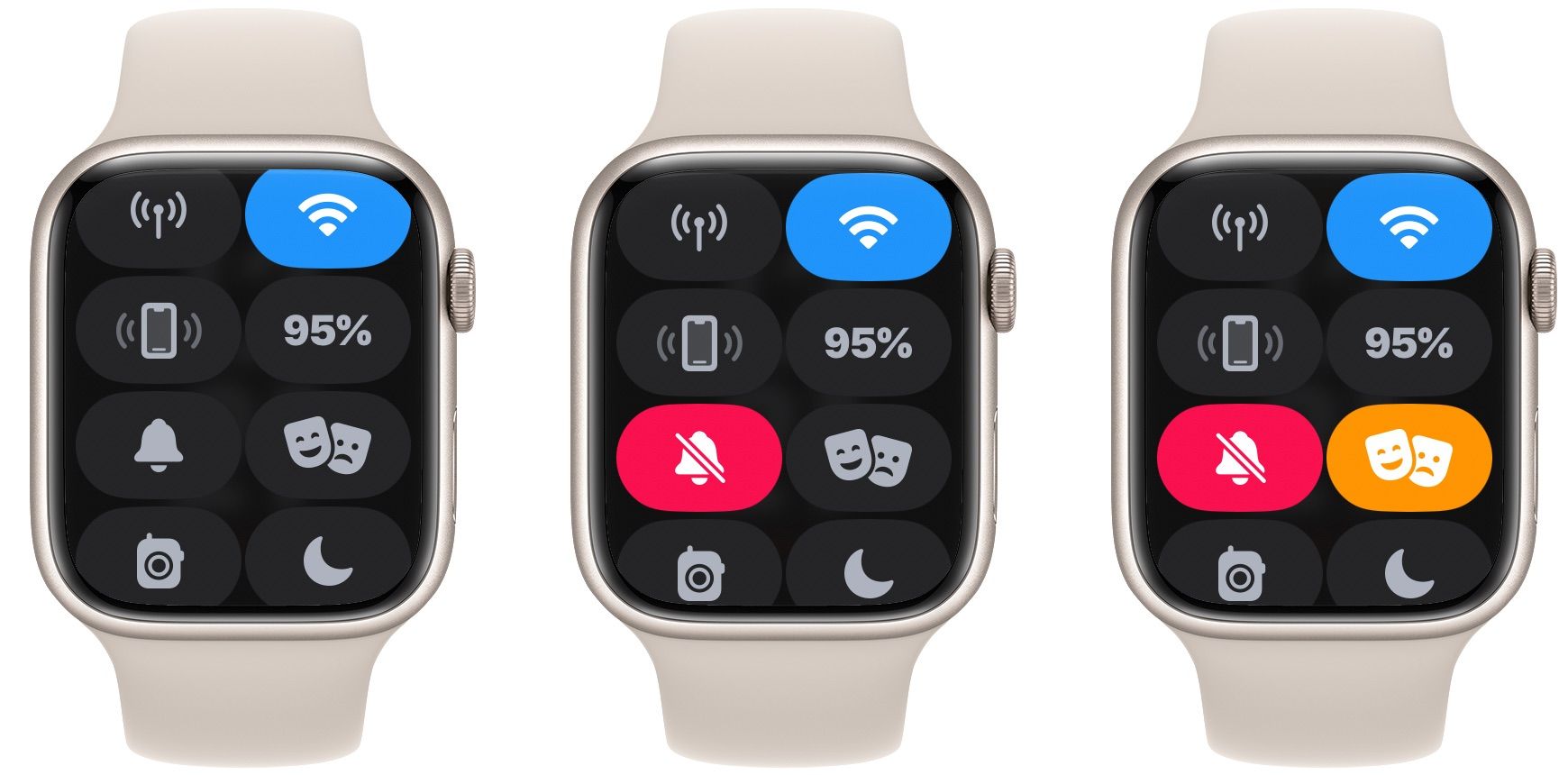
In addition, you can use theater mode, which silences your notifications and prevents your display from lighting up when raising your wrist. This is ideal when you’re watching a movie in a theater. Swipe up from the watch face and tap the theater mode icon (the icon with two masks) to enable it.
You can still tap the display or press the Digital Crown to wake your Apple Watch when Theater mode is on.
5. Customize Haptic Alerts and Cover to Mute Sounds
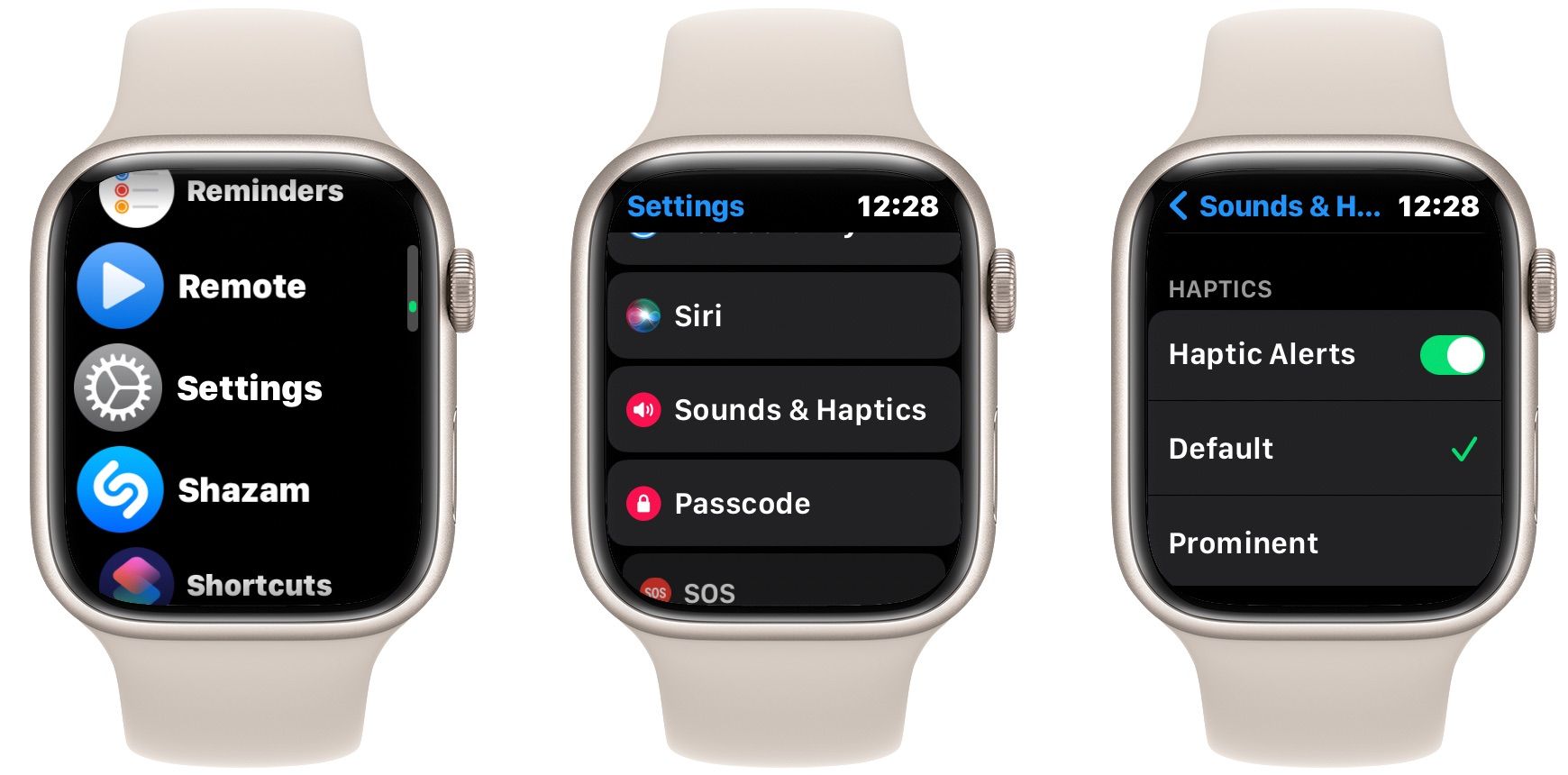
If you feel your Apple Watch’s haptic feedback is too strong or frequent, you can reduce its strength or turn it off altogether. To customize haptic alerts, go to Settings > Sounds & Haptics. Tap Default under HAPTICS (while the Haptic Alerts switch is toggled on) for weaker vibrations. Alternatively, toggle off Haptic Alerts to disable vibrations.
You can also enable Cover to Mute in the same menu to quickly silence your Apple Watch when you receive a notification. When this feature is enabled, use your palm to cover your Apple Watch’s display for at least three seconds to mute the sound when receiving an alert, for example, a phone call.
6. Disable Voice Feedback and Raise to Speak

Having Siri read your workout alerts and announce your fitness milestones can interrupt your flow during a relaxing workout. If you find this feature distracting, you can stop Siri from announcing fitness notifications on your Apple Watch by going to Settings > Workout and toggling the Voice Feedback switch off.
In addition, if you often wake Siri accidentally when you raise your wrist and talk, you can disable it by going to Settings > Siri and toggle the Raise to Speak switch off.
Enjoy Your Apple Watch With Less Notifications
Receiving several notifications on your wrist can be annoying and distracting. Luckily, you can use these tips to minimize your Apple Watch notifications to enjoy a more peaceful and uninterrupted day. With fewer notifications from messages or phone calls, you can focus on important tasks and maximize your productivity throughout the day.